
Gmail Backup Tool — User Guide
Exhaustive architectural walkthrough covering all 6 wizard stages — from multi-threaded Gmail ingestion, data hygiene rules, to exporting across local container formats and cloud endpoints.
Before You Begin — SysAdmin Pre-Flight Checklist
Essential preparation steps before launching your migration run
100% Standalone Engine
Microsoft Outlook, Exchange Server, or third-party client installation is NOT required. Reads raw bytes directly from disk.
Free Disk Space Buffer
Ensure your target drive has free space equal to at least 1.5x of your total input mailbox size for local document conversions.
Cloud Handshake (OAuth 2.0 PKCE)
For Office 365 or Google Workspace, Modern OAuth 2.0 browser authorization handles tokens securely without storing passwords.
Close Open File Handles
Close local email clients before starting to release OS read-locks on active cache files.
Complete 6-Step Execution Guide
Connect Gmail Account via Google Modern Auth (OAuth 2.0)
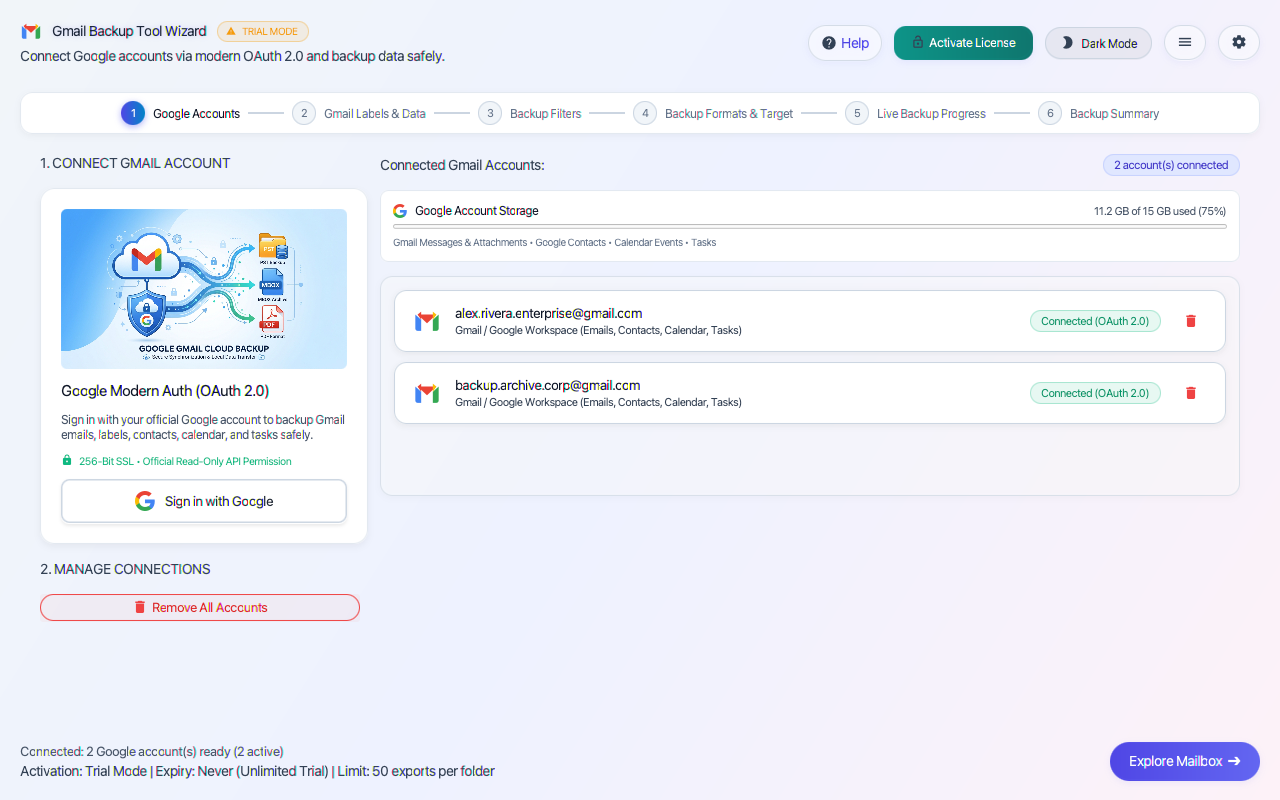
Sign in securely using the official Google OAuth 2.0 browser consent screen. The software uses read-only API permissions, zero password storage, and direct SSL streaming. View account storage quotas and manage multi-account queues with 1 click.
Execution Actions & Step Instructions
- 1
Click Add Files or Add Folder to queue one or hundreds of Gmail mailbox archives simultaneously.
- 2
Use Auto-Detect to scan default system directories and register all associated profiles automatically.
- 3
Check the Status column — green confirms verified ANSI/Unicode binary headers ready for streaming.
- 4
If a prior conversion was halted, select the job from Interrupted Sessions to resume from the exact byte offset.
- 5
Click Next Step → to proceed to the interactive mailbox structure visualizer.
Pro Tip: For large enterprise migrations across network shares (NAS/SAN), use the batch folder importer. It scans sub-directories recursively, generating a centralized file size and count manifest before processing starts.
Gmail Labels, Contacts & Calendar Explorer
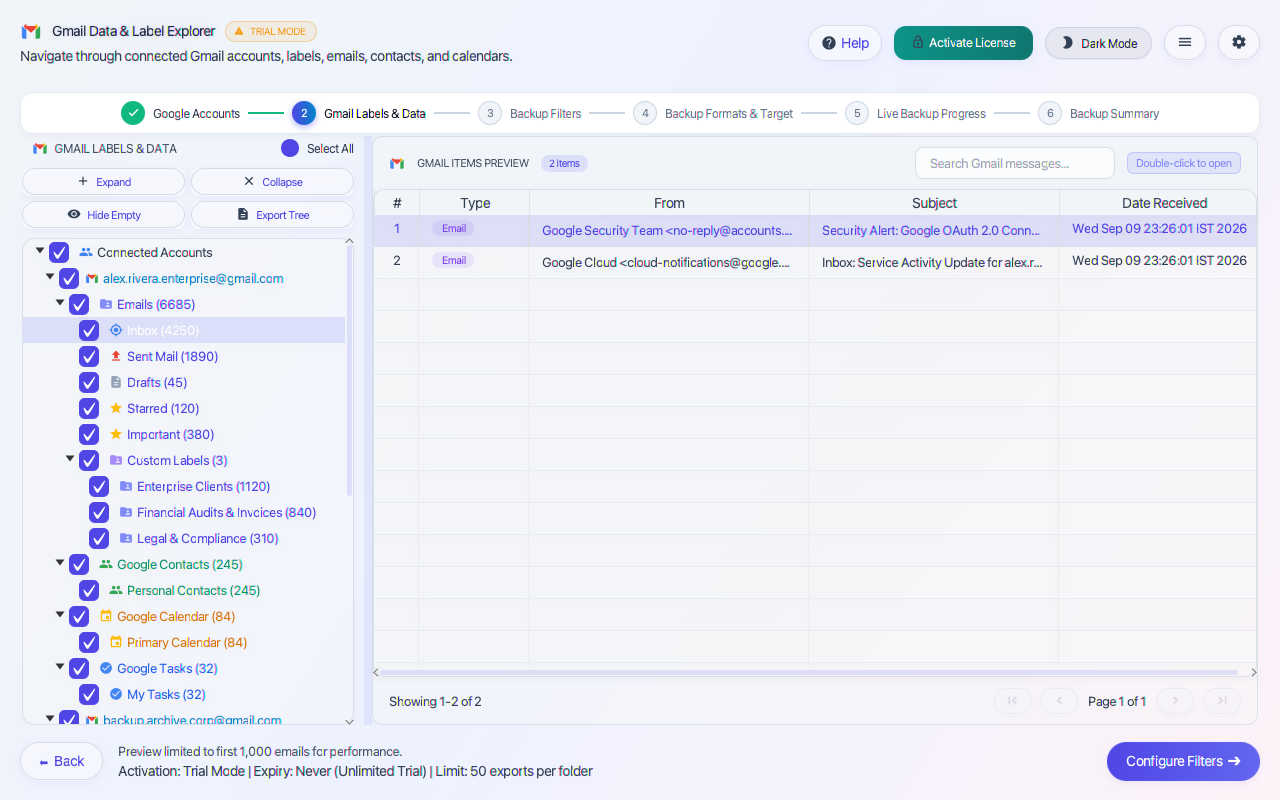
Browse the interactive 3-pane mailbox explorer. Expand nested label trees (Inbox, Sent Mail, Drafts, Starred, Custom Labels) alongside Google Contacts, Calendars, and Tasks. Click any message to preview full RFC 822 headers, HTML styling, and attachments.
Execution Actions & Step Instructions
- 1
Navigate and expand nested folders in the Mailbox Folder Tree on the left panel.
- 2
Click any folder to load its paginated message manifest with instant metadata sorting.
- 3
Use the Instant Search Bar to locate specific emails by subject, sender, date, or body keywords.
- 4
Click any message to preview full headers, MIME multipart content, and attachment payloads in the bottom pane.
- 5
Check or uncheck individual folders or items to include only specific data sets in the export.
- 6
Click Next Step → when you have confirmed the folders and items you wish to process.
Pro Tip: The folder tree supports deep recursive folder hierarchies. You can uncheck entire subtrees (such as Deleted Items or Sync Issues) with a single click to prevent unneeded clutter from entering your target destination.
Granular 7-Category Backup Filter Engine
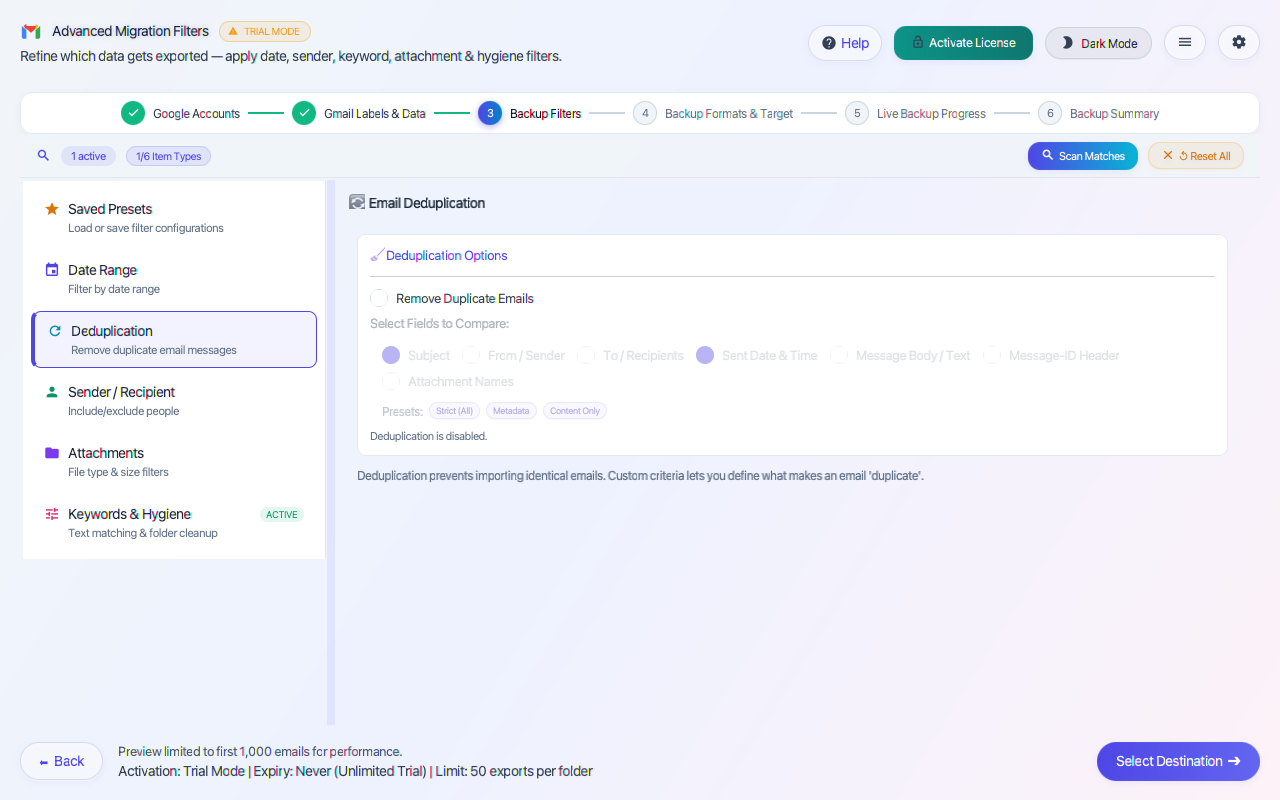
Configure precision data hygiene rules across 7 dedicated tabs: Folder Hygiene (auto-exclude Trash/Spam), Date Range Filtering with 1-click presets, Sender/Recipient domain whitelisting, Subject/Regex matching, Attachment boundaries, and SHA-256 deduplication.
Execution Actions & Step Instructions
- 1
Tab 1 (Folder Hygiene): Enable automatic exclusion of Junk, Trash, Deleted Items, and empty folders.
- 2
Tab 2 (Date Range): Select From/To dates or apply 1-click presets (Last 30 Days, 1 Year, Custom Fiscal Year).
- 3
Tab 3 (Sender/Recipient): Whitelist or blacklist email addresses and domain wildcards (*@company.com).
- 4
Tab 4 (Keywords & Regex): Enter search terms or complex Regular Expressions for forensic eDiscovery matching.
- 5
Tab 5 (Attachments): Filter by file extension (.pdf, .xlsx), file size limits, or strip attachments entirely.
- 6
Tab 6 (De-duplication): Enable SHA-256 content hashing to automatically detect and skip duplicate messages.
- 7
Tab 7 (Item Type): Selectively isolate Emails, Contacts (vCard), Calendars (iCal), Tasks, or Notes.
- 8
Click Scan Matches to test your rule set on the background thread and view the exact match count.
Pro Tip: Always run "Scan Matches" before a large migration. It runs an asynchronous test in seconds, giving you the exact matching item count so you can fine-tune filters without waiting for a full export.
Backup Formats & Target Destination Selection
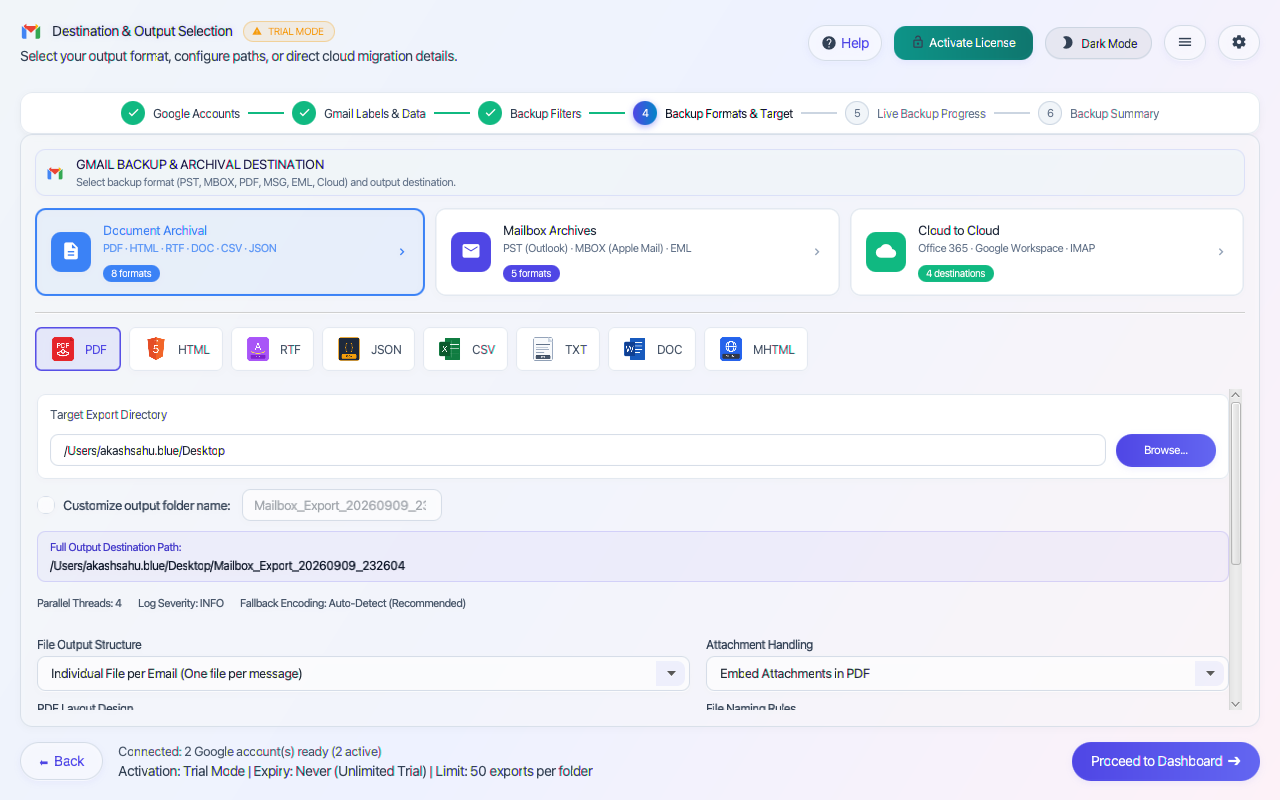
Select from 17 supported destination formats grouped into Document Archival (PDF with legal Bates stamping, HTML, RTF, CSV, TXT), Mailbox Archives (PST with automatic splitting, MBOX, EML, MSG), or direct cloud sync to Office 365 and IMAP.
Execution Actions & Step Instructions
- 1
Select your Destination Category (Document Formats, Mail Archives, or Direct Cloud Upload).
- 2
Click your target format badge (e.g. PDF Legal, EML, PST Splitting, Office 365, Gmail, or IMAP).
- 3
For Document / PDF Export: Configure Bates numbering prefix, starting sequence, and attachment embedding mode.
- 4
For PST Splitting: Set split threshold (2GB, 5GB, 10GB, 20GB, 50GB) to prevent large-file corruption.
- 5
For Office 365 / Gmail: Complete the interactive OAuth 2.0 PKCE handshake — no user passwords stored.
- 6
For IMAP Server: Input hostname, port (993 for SSL/TLS), authentication credentials, and socket concurrency.
- 7
Click Next Step → to launch the multi-threaded execution dashboard.
Pro Tip: When migrating to Office 365 or Google Workspace, Modern OAuth 2.0 authentication handles token refreshes automatically in the background, allowing long overnight multi-gigabyte migrations without session timeout interruptions.
Live Backup Progress & Real-Time Telemetry
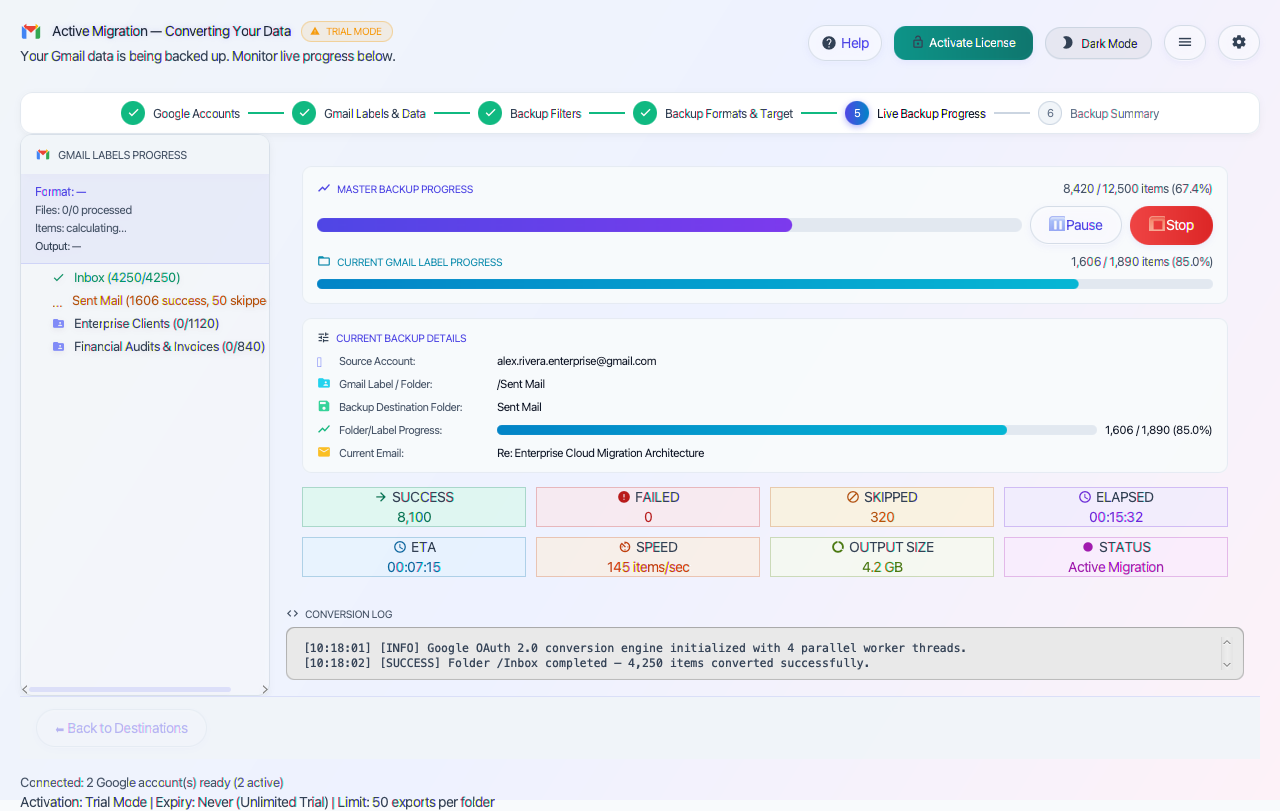
Launch the adaptive streaming engine. Real-time telemetry cards display live throughput (items/sec), items converted, items skipped, failed counters, elapsed time, and dynamic ETA. The interactive visual tree displays per-folder indicators while a scrolling console logs transaction entries.
Execution Actions & Step Instructions
- 1
Observe the top Progress Bar for overall job completion percentage.
- 2
Monitor the Speedometer & Telemetry Cards: live throughput in items/sec, elapsed time, and dynamic ETA.
- 3
Track folder-level migration progress in the Interactive Live Tree (color-coded status badges).
- 4
Use Pause to temporarily halt thread execution safely, and Resume to continue instantly.
- 5
Click Stop to terminate gracefully — all exported messages remain intact and can be resumed later.
- 6
Expand the Live Log Console to inspect real-time transaction timestamps and MIME parsing details.
Pro Tip: The engine features adaptive memory throttling. If system RAM usage reaches 85%, it automatically flushes disk buffers and throttles worker threads to ensure zero memory leaks or UI freezes even during 100GB+ workloads.
Backup Summary & Compliance PDF Audit Report
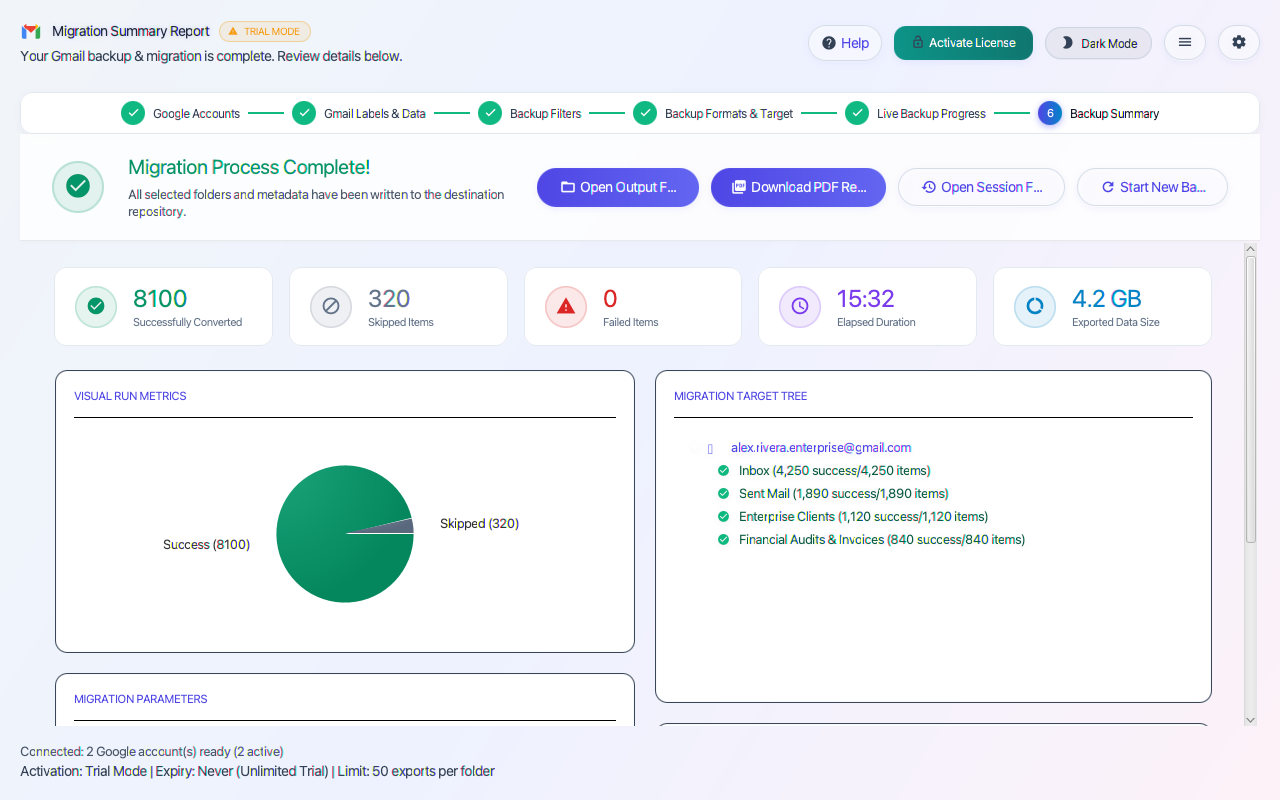
Once backup finishes, an exhaustive analytics dashboard displays total items processed, success rates, volume of data written, and skipped items. Export an official timestamped PDF Audit Report for compliance sign-off or export SHA-256 item-level compliance CSV logs.
Execution Actions & Step Instructions
- 1
Inspect the Audit Summary Cards: Total Items Processed, Success Count, Failed Count, and Output Size.
- 2
Click Open Output Folder to immediately view your exported files in Windows Explorer or macOS Finder.
- 3
Click Export PDF Audit Report to generate a branded, timestamped summary report for compliance sign-off.
- 4
Click Export Compliance CSV Log to obtain the SHA-256 item-level cryptographic checksum manifest.
- 5
Click Save Session Template to preserve your configuration, filter rules, and folder selections for future runs.
- 6
Click Start New Job to return to Step 1 for another migration batch.
Pro Tip: Save your session configuration as a Session Template (.cfg). On future migration runs, simply load the template to skip Steps 1 through 4 configuration entirely and begin migration immediately.
Frequently Asked Questions
Q:Why use this tool instead of free Google Takeout?
Google Takeout takes 24-72 hours to compile archives, chops large accounts into dozens of fragmented 2GB zip files that frequently fail during download, and only outputs raw MBOX format that Microsoft Outlook cannot open. Prism downloads immediately straight into Outlook PST, searchable PDF, or EML on your local drive.
Q:Do I need to store my Google password in the app?
No. The tool uses official Google OAuth 2.0 PKCE authentication. You sign in directly through Google's official login screen in your browser with read-only permissions. We never see, touch, or store your Google password.
Q:Can I backup multiple Gmail accounts or switch profiles?
Yes. You can authenticate and manage multiple Gmail accounts inside the connection manager, easily backing up personal and business inboxes to separate archive destinations.
Q:Does it support incremental backups?
Yes. Incremental backup mode scans for new emails received since the last backup and skips already-downloaded messages, saving bandwidth and hours of processing time.
Q:Does this work on Apple Silicon Macs?
Yes. Native ARM binaries run directly on Apple Silicon M1, M2, M3, and M4 Macs with zero Rosetta emulation overhead, as well as Windows 11 and 10.
Step Navigation
6 StagesSystem Requirements
Supported Formats
Ready to Migrate?
One-time lifetime license. No subscriptions, no recurring renewal fees.
Get Lifetime License Or Download Free Trial →Trial version exports up to 50 items per folder to verify structure. Full commercial license removes all item boundaries.